Device Nominations
| |
Nomination Routine |
Description of Device |
| A |
gXwin() |
Default X-Window |
| B |
gXwinw(pause,clear,xp,yp,width,height) |
User-defined X-Window |
| C |
gXwinao(window_id,pixmap_id) |
Opens GINO using an existing bitmap |
Device Characteristics
| Default Width |
2/3 Maximum |
User Defined |
Application Dependent |
| Default Height |
2/3 Maximum |
User Defined |
Application Dependent |
| Maximum Width |
Server Dependent |
| Maximum Height |
Server Dependent |
| Colours / Pens |
Server Dependent (Default = 64) |
| Colour Palette |
Server Dependent |
| Drawing Modes |
GERASER, GNOT, GAND, GOR, GXOR |
| Character Sizes |
Server Dependent |
| Character Angles |
Server Dependent |
| Italic Characters |
Server Dependent |
| Polygonal Filling |
Single Polygons & Solid only |
| Image Handling |
All Functions |
| Cursor Types |
GHOURGLASS,GDEFAULT, GSMALLCROSS, GLARGECROSS, GCROSSHAIR, GX, GPOINTER & 74 X specific types |
| Cursor Actions |
GPOLYLINE, GDEFAULT, GRUBBERBAND, GRUBBERBOX, GRUBBERSQUARE, GRUBBERELLIPSE, GRUBBERCIRCLE |
| Event Types |
GKEYPRESS, GLOCATOR, GMOVEMENT, GKEYRELEASE, GRESIZE, GPOINTERLEAVING, GPOINTERENTERING |
| Auxiliary Drawing Areas |
Yes (Up to 50 pairs) |
| Window/Device Titling |
Yes |
Driver Availability
The Xwin series of drivers are used for standard graphics output to an X-Windows screen and is therefore only available under Linux, UNIX and OpenVMS systems. For OpenGL output to X-Windows see gGlx
Linking with Xlib Library
To satisfy all outstanding references made by this driver, the XLIB library needs to be referenced in your link statement:
UNIX:
f90 -o myprog myprog.o -lgino-f90 -lX11
Some UNIX systems may require extra libraries to satisfy further references from the X11 library. e.g.
f90 -o myprog myprog.o -lgino-f90 -lX11 -lbsd
Device Nomination
Three nomination routines are available with X-windows:
gXwin()
This nomination routines opens a standard window of 2/3 screen size in the top left-hand corner.
gXwinw(pause,clear,xp,yp,width,height)
This routine allows the user to set the position, size and action at program termination where:
pause
|
= 0 |
specifies there is no pause at gCloseDevice() (default) |
|
= 1 |
specifies that the process will pause with a prompt at gCloseDevice() |
|
= 2 |
specifies that the process will pause (without prompt) at gCloseDevice() |
clear
(Not Used)
xp,yp
specify the pixel position of the top left of the window (default = 0,0)
width,height
specify the pixel width and height of the window (default = 2/3 of max.)
The graphics window, however will always be cleared at the end of the program.
The nomination routine gXwin() is equivalent to calling gXwinw() as follows:
gXwinw(0,0,0,0,width,height)
where width,height are equivalent to two-thirds the dimensions of the full drawing area.
gXwinao(window_id,pixmap_id)
This routine allows GINO to draw to an existing window where window_id is the identifier of the external window and pixmap_id is the identifier of a pixmap the same size as the external window. If window_id or pixmap_id have a NULL value then they will be created by GINO.
The normal operation of the X-Windows driver is to open a window, map it, clear it and set up a colour table. A pixmap is also created to act as a backing store to enable the repainting of exposed regions.
When using gXwinao(), the window and pixmap are not created, but their attributes are obtained and used by GINO's initialization procedures. The window is not blanked and the colour map is not overwritten.
The window set up externally will need to be mapped before entering GINO.
If external drawing is to be used within the window, a pixmap will need to be created to allow damage repair on the window. To enable this all drawing must be done to the pixmap as well as to the window so that they are a copy of each other. Within the GINO gWaitForEvent()/gGetCursorEvent() loop, expose events on the window are trapped and used to trigger XCopyArea commands to repaint the window. If no external drawing is to be done, set pixmap_id to NULL and GINO will create and maintain the pixmap until gCloseDevice().
Window & Pixmap Identifiers
The identifiers of the primary window and pixmap can be obtained though a special device driver dependent routine:
gXwinid(window_id, pixmap_id)
These values may be passed to an appropriate X routine requiring such information.
Window Size
If the user of the application changes the window size during operation, the driver will ensure that the picture is updated by redrawing from the backing store, but GINO is not able to take any further action until after a gNewDrawing() is called. At this point the programmer can re-enquire the window size using gEnqDrawingLimits() and take the appropriate action.
If the window size is changed by the user, this takes priority over the programmers request for a change through gSetDrawingLimits().
Window Title
The default window title of a GINO application is a string composed of the GINO version and license owner. This can be superceded in the following order of precedence:
1) GINO config variable XWINTITLE
2) System environment variable XWINTITLE
3) Application call to gSetDeviceTitle()
Colour Map
GINO will open each window with the same colour attributes as the default display visual whether it be monochrome, pseudo, dynamic or true colour.
Special conditions apply on dynamic/pseudo colour displays, where a palette of 256 colours is usually available. On this type of display GINO allocates a default number of 64 colours from the system colour map, allowing multiple applications to operate without affecting the colours of each window. This default value can however be changed in one of three ways:
1) Setting an environment variable XNCOLS
2) Setting a variable XCOLS in the GINO configuration file
3) Calling the routine gSetColourInfo(ndc,ndt)
where the number of colours can be set to any value from 2 to 255. If the driver cannot obtain the requested number of colour cells from the Window Manager (being dependent on the number of cells allocated to other applications), it will use what it can or revert to monochrome output. Users should always use the routine gEnqColourInfo() to determine how many colours have been actually allocated in these circumstances.
If the value equals 256 then, rather than using the shared system colour map, a private colour map with 256 colours is allocated to the application. Whilst providing more colours to the GINO application, moving the mouse pointer in and out of the GINO window will cause an immediate colour change as the different colour palettes are loaded into memory.
Graphics Visibility
The current graphics window can be popped to the front of the display or pushed to the back of the display using the GINO routine gSetGraphicsVis().
e.g.
gSetGraphicsVis(GINVISIBLE)
Pushes the window to the back
gSetGraphicsVis(GVISIBLE)
Pops the window to the front
Character Fonts
The following hardware character fonts are accessible through the routine gSetCharFont(font) or gSetCharFontName(fontname) where font or fontname can be one of the following:
| 0 or 100 |
Courier (default) |
The availability of the fonts is server dependent. The font enquiry routine gEnqHardFontList() can be used to enquire which fonts are available on the server being used. Where one of the hardware fonts listed above (except font 170) is not available, a software emulation is provided with similar character proportions.
Bold and/or italic versions of fonts 100-106 can be selected using the routine gSetFontWeight(weight) where weight>0 and the routine gSetItalicAngle(angle) where angle can be between 10 and 20 degrees.
Mouse Pointer Types
When the window is first initialised the pointer icon is set to be an 'hour glass' indicating that no interaction can be performed. This is changed when either gGetCursorEvent() is called, or one of the permitted event types is enabled. The icon used at this point can be set using the routine gSetCursorType():
gSetCursorType(type,forcol,bakcol)
where type is the type number. Type -1 is an hour-glass, type 0 is a double cross, type 1 is a single small cross and type 2 is a large cross extending the whole height and width of the window. The following additional X cursor types are also available.
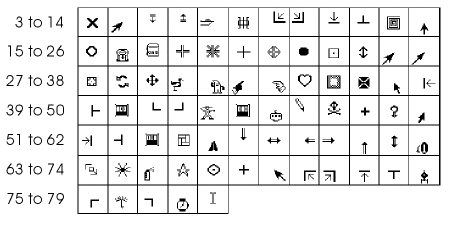 |
Additional X cursor types |
forcol and bakcol can also be used to set the cursor foreground and background colour numbers, remembering that cursors are drawn in XOR mode resulting in a different appearance to the GINO colour numbers on the actual display.
Graphics Cursor
In addition to the usual key values returned for a cursor hit, some special values of key are also returned as follows:
| 0 |
A call to gGetCursorEvent() has been made when the graphics window is iconized |
| 1024 |
A resize event has taken place; the user should call gNewDrawing() and enquire the new size of the window (through gEnqDrawingLimits()) and redraw as required |
While waiting for a key or button press, any expose events that take place will cause an automatic update of the exposed area from the backing store. When gGetCursorEvent() is called, the input focus of the device is set to be the graphics window. When the key has been pressed, the focus is returned to the window which had it before gGetCursorEvent() was called.
Input Focus
In normal circumstances the XWIN driver will ensure that the input focus is set to the X Window when input is required by the application. There are however circumstances when this cannot be assumed and so it may become necessary for the application to force the input focus to be set to the window. This can be achieved through the use of the gAddEventType() routine using the argument GKEYPRESS.
XWIN Hard Copy
A XWIN driver specific routine is available to create a PostScript image file from the contents of the current window:
gXwineps(mode,filename,ier)
Where mode=0 to create a monochrome or =1 to create a colour image, filename is the name of the PostScript file to be created and ier returns 0 if it has been successfully created.
XWIN Driver Error Messages
The following errors specific to this device driver may occur:-
At Initialization:
GINO ERROR 310 - Cannot Open Display
GINO ERROR 311 - Cannot Open Window
These are caused by an incorrect connection to the display or network problems. In both cases, after outputting the error, the program will continue but no further output will take place.
At Initialization or gNewDrawing():
GINO ERROR 312 - Cannot obtain Window size
Character attribute setting:
GINO ERROR 313 - Cannot load required font
Iconized window at gCloseDevice():
GINO ERROR 314 - De-iconize Window
Using X-Windows from a remote host
When running an application using the X-Windows driver from a remote host, it is necessary to set permissions on the local workstation/terminal and set the correct display name on the remote host processor. This is achieved by carrying out the following steps:
Under UNIX:
| |
On the local workstation / terminal |
|
| |
xhost + |
to allow access from all hosts OR |
| |
xhost <hostname> |
to allow access from a specific host |
| |
then login to the remote host using TELNET or rlogin |
|
| |
telnet <remote host name> |
or rlogin |
| |
and set the display name: |
|
| |
setenv DISPLAY <local display name>:0.0 |
|

